EC-RAG Agent Guide
This guide explains how to enable, configure, and use Agent capabilities within EdgeCraftRAG (EC-RAG). It covers the creation and management of different agent types to enhance retrieval and generation workflows.(Currently, EC-RAG Agent is an experimental option.)
Overview
EC-RAG introduces autonomous agents that can perform complex reasoning, planning to answer queries more effectively than standard RAG pipelines.
EC-RAG currently supports two types of agents:
Simple Agent: A lightweight agent designed for straightforward tasks and direct query answering.
Deep Search Agent: An advanced agent capable of multi-step planning, deep research, and reasoning.
Creating an Agent
Prerequisites
To use agents in EC-RAG, please ensure the following prerequisites are met:
Ensure the standard EC-RAG services are running and the UI is accessible.
Agents require vLLM serving, please ensure pipelines utilizing vLLM serving are available.
Creating a Simple Agent
To create a Simple Agent, you need to switch to Agents tab in the Settings page and click Create Agent button.

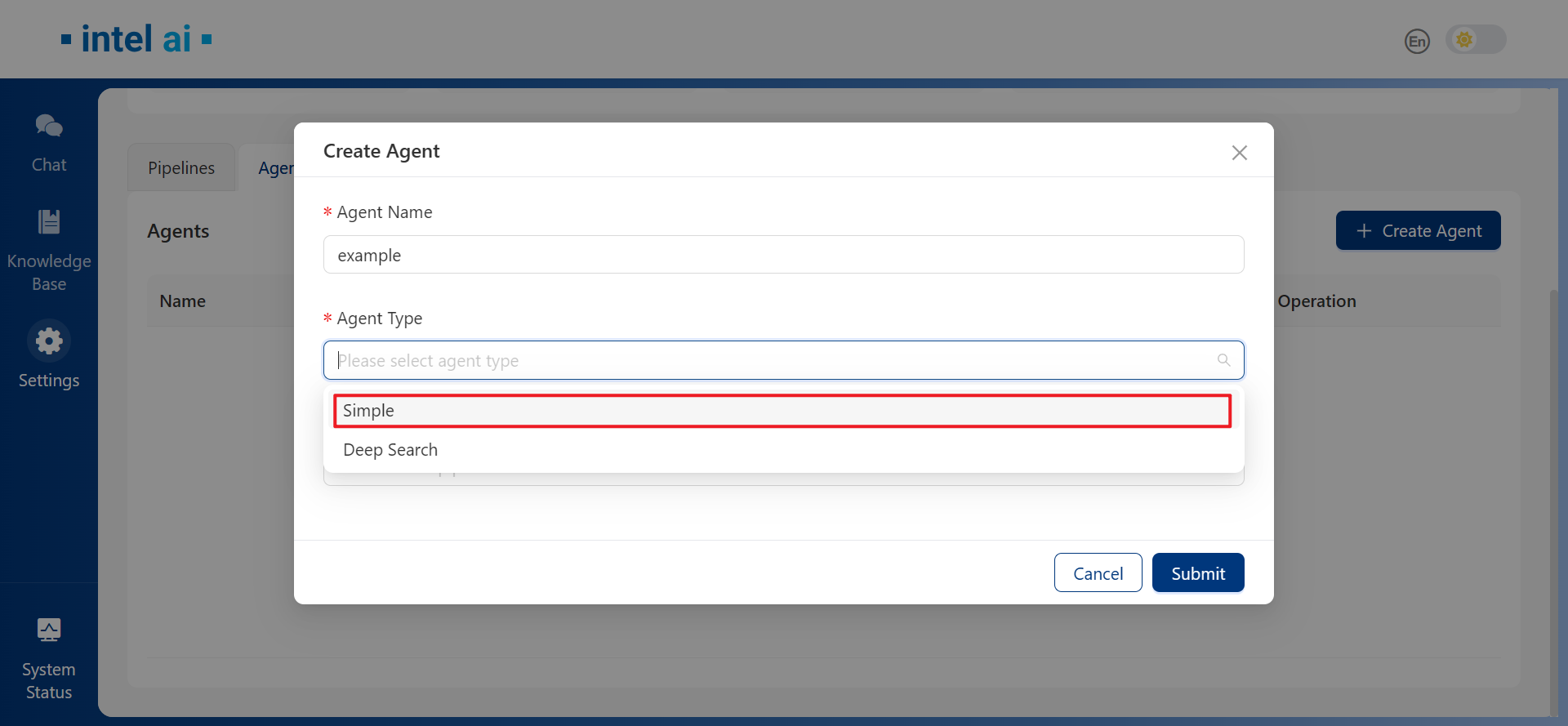
Then in the Create Agent window, set Agent Type as Simple.
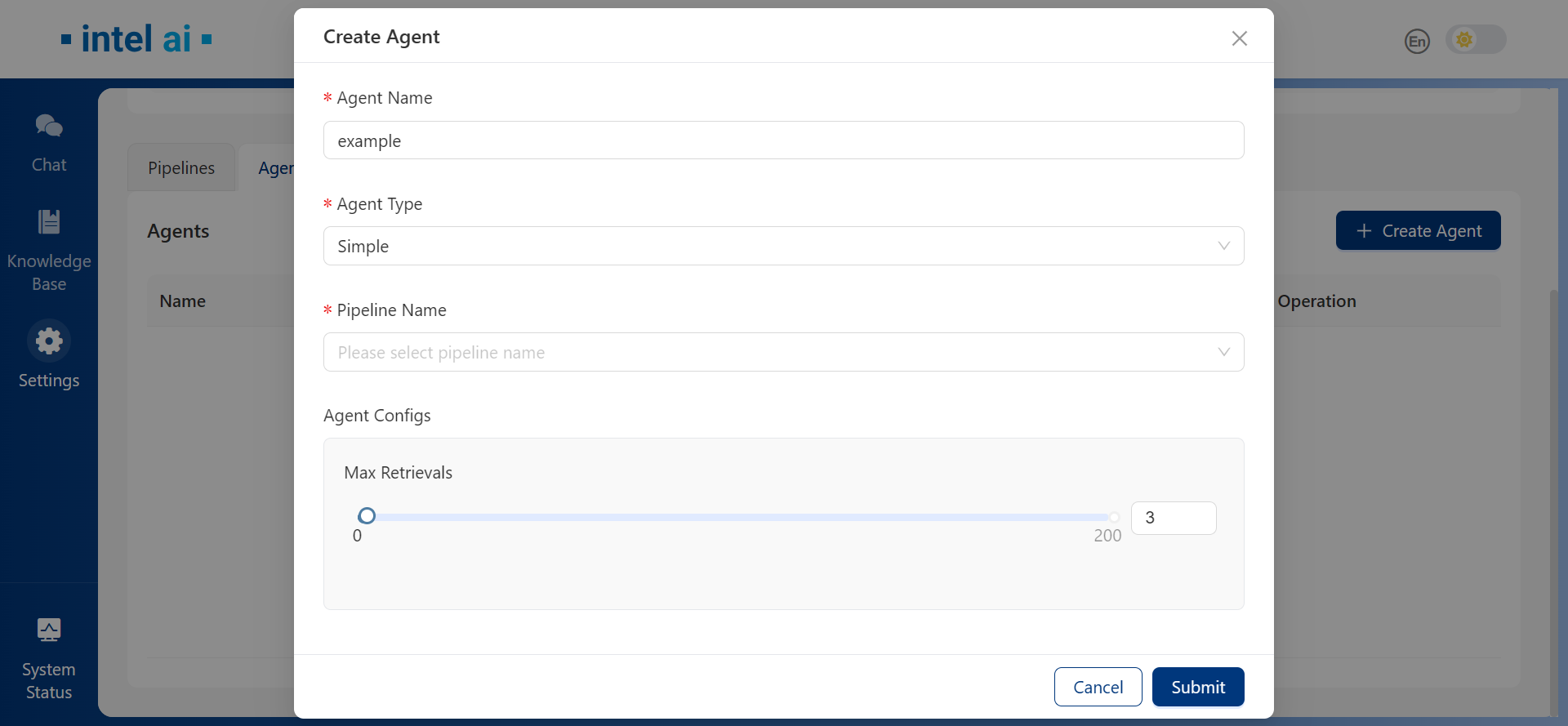
After selecting Simple, pipeline selection and Agent configuration will be available. Please select the pipeline with vLLM serving (generator type FreeChat). For Agent Configs, you may specify Max Retrievals as needed.
Creating a Deep Search Agent
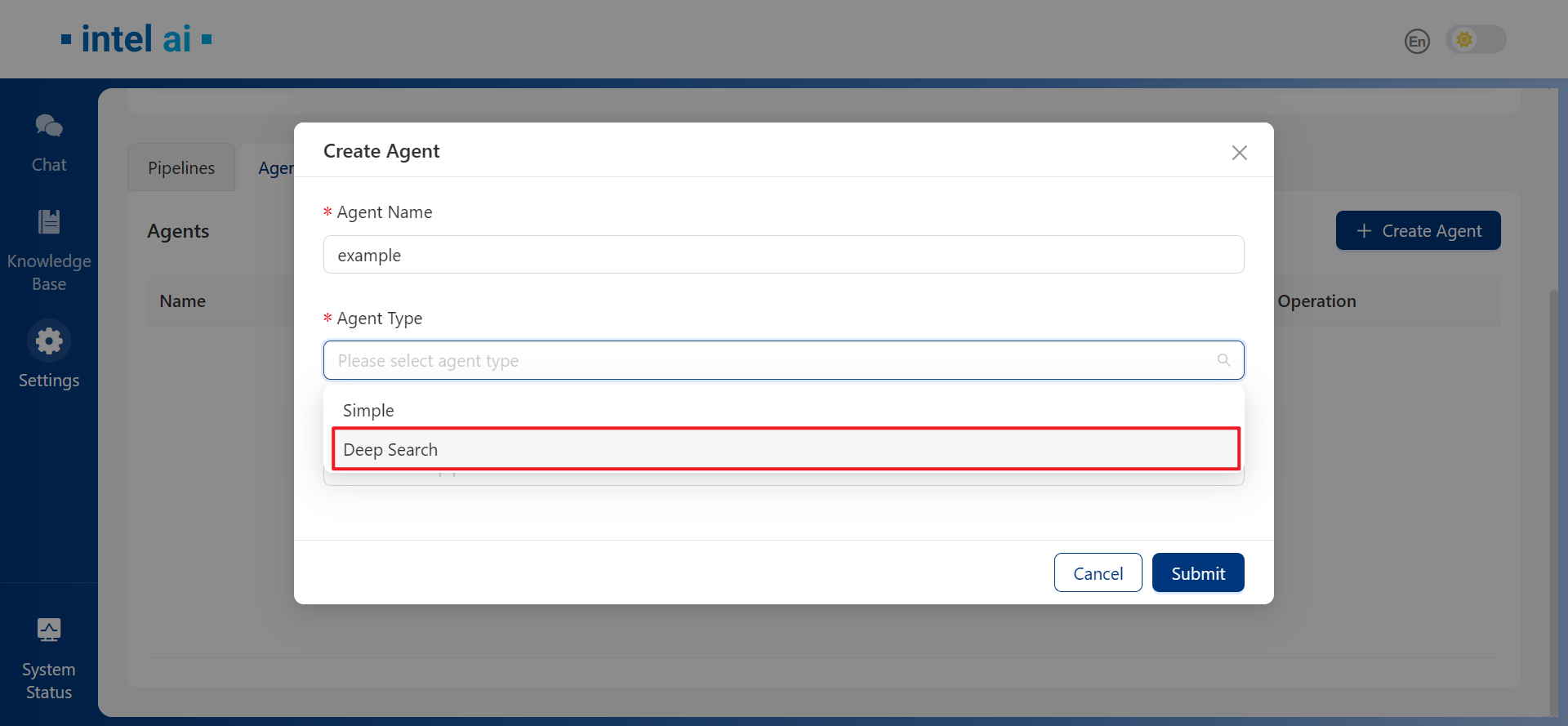
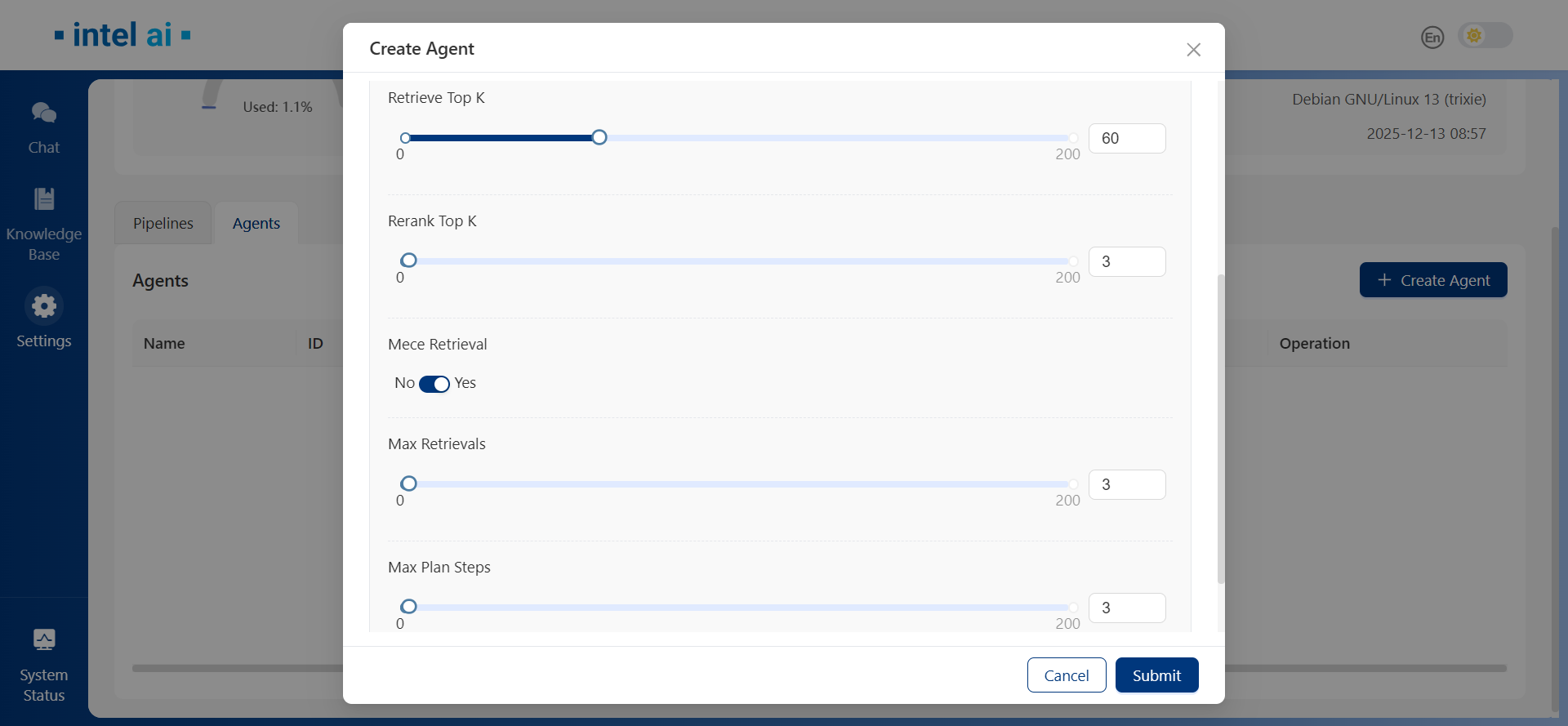
To create a Deep Search Agent, switch to Agents tab and click Create Agent button. In Create Agent window, set Agent Type as Deep Search.
Similarly, please select the pipeline with vLLM serving (generator type FreeChat) in Pipeline Name. In Agent Configs session, 5 parameters could be customized: Retrieve Top K, Rerank Top K, Mece Retrieval, Max Retrievals and Max Plan Steps. If Mece Retrieval is enabled, agent will not retrieve chunks already retrieved in each step.
Using Agents in RAG Pipelines
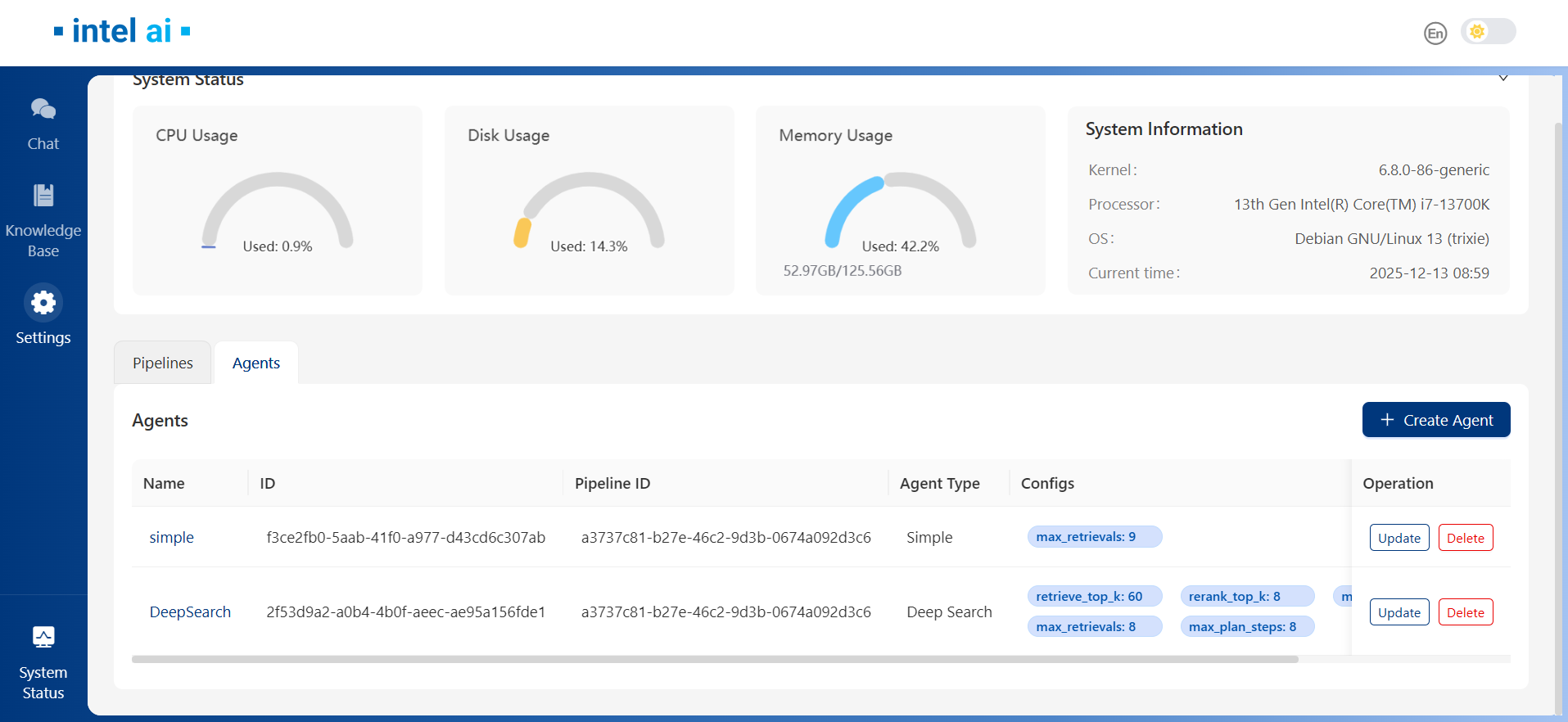
When agents were created successfully, they will be listed under Agents tab.
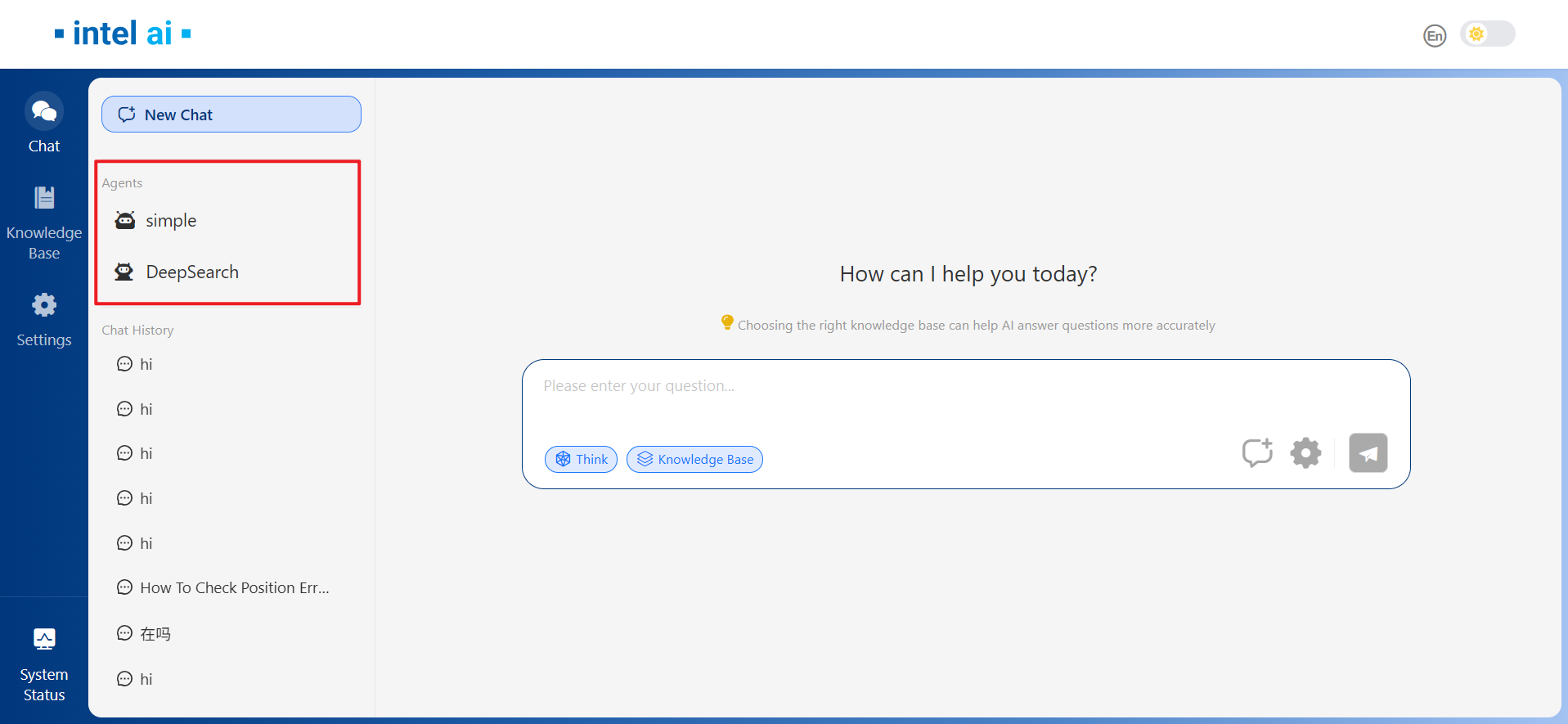
Then we can switch to Chat page to use the agents we created. They will be listed under Agents section of Chat page.
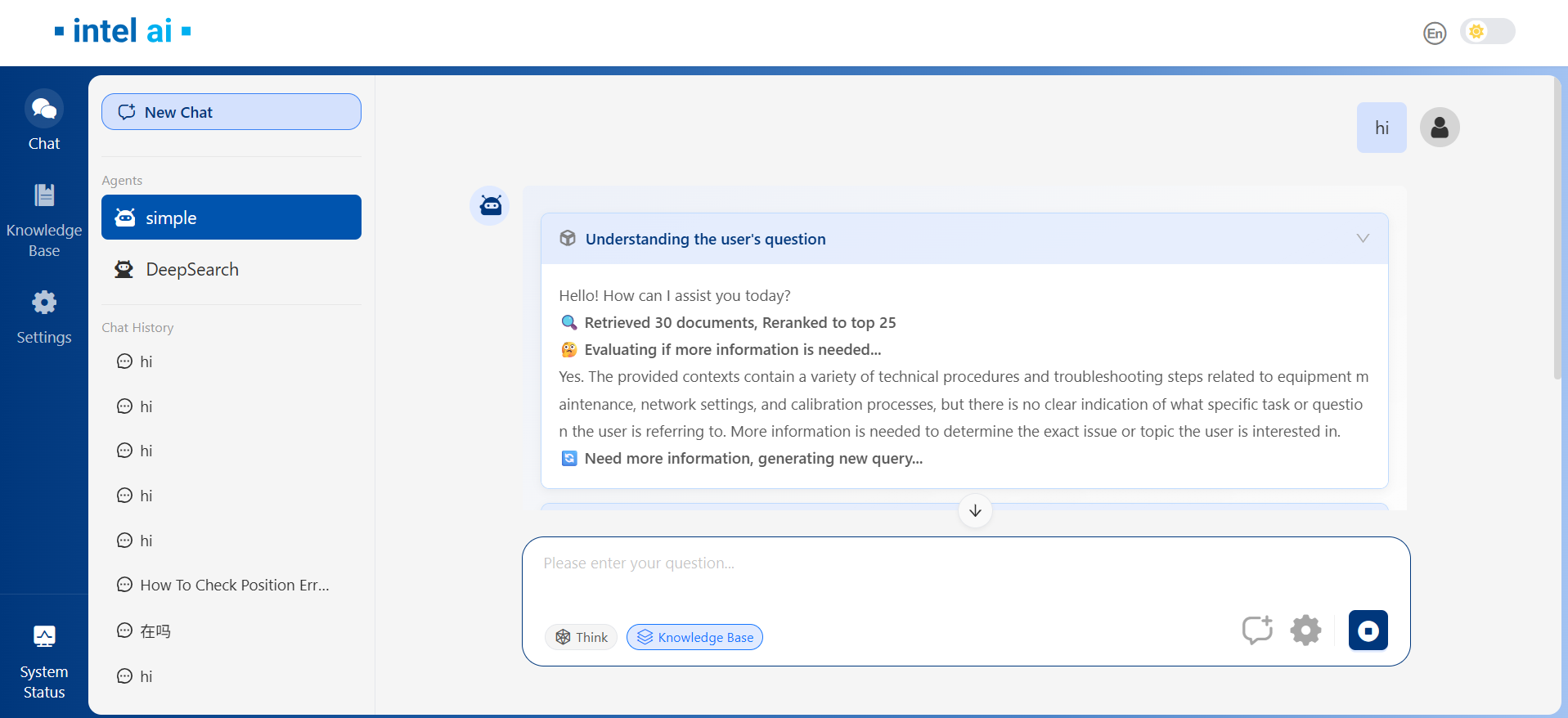
Simple Agent
Select the Simple agent we created, Think function will be locked in dialog window as Think is mandatory for agents. While Simple agent is working, it will decide if more information is needed, and generate new query if so.
DeepSearch Agent
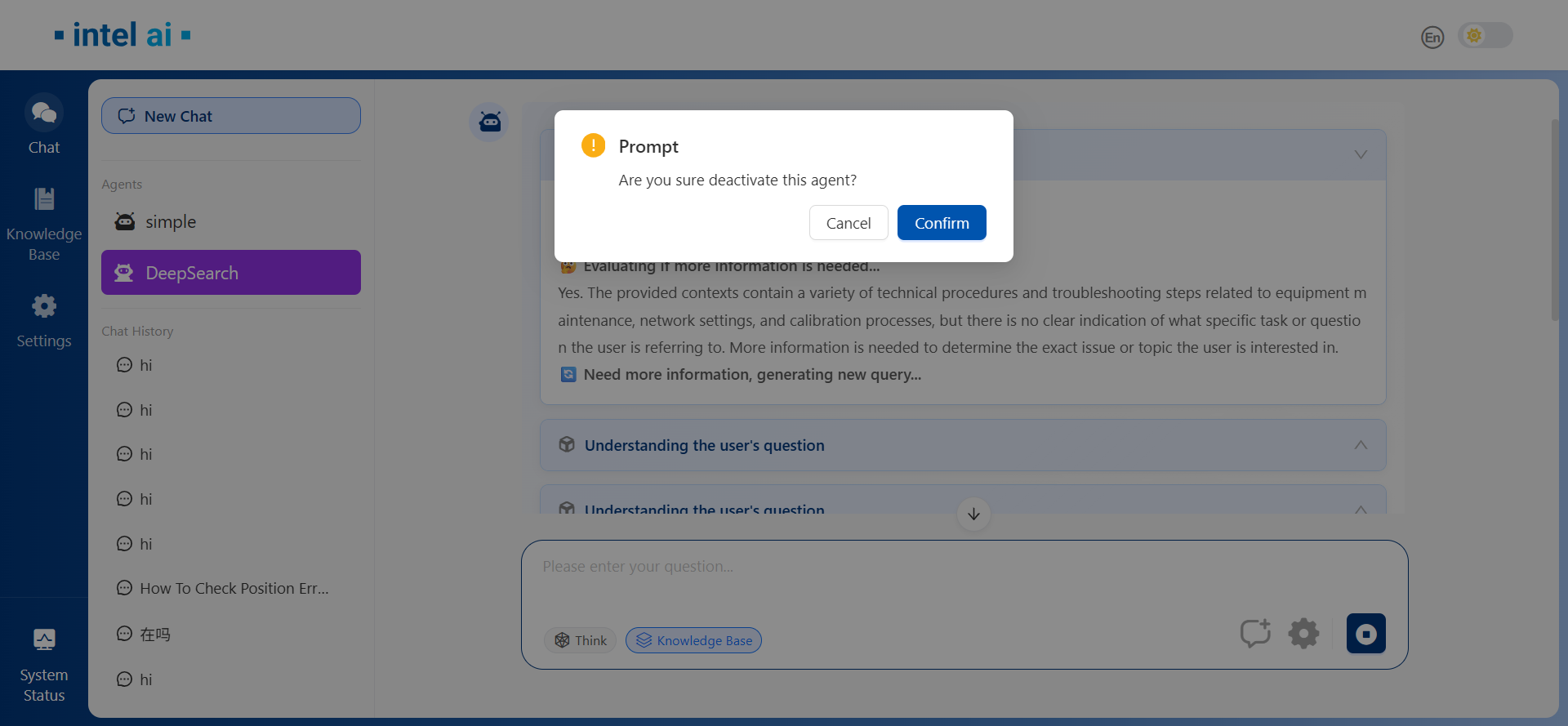
Select DeepSearch agent from the Agents section. If we’re going to switch between different agents, previous will be close.
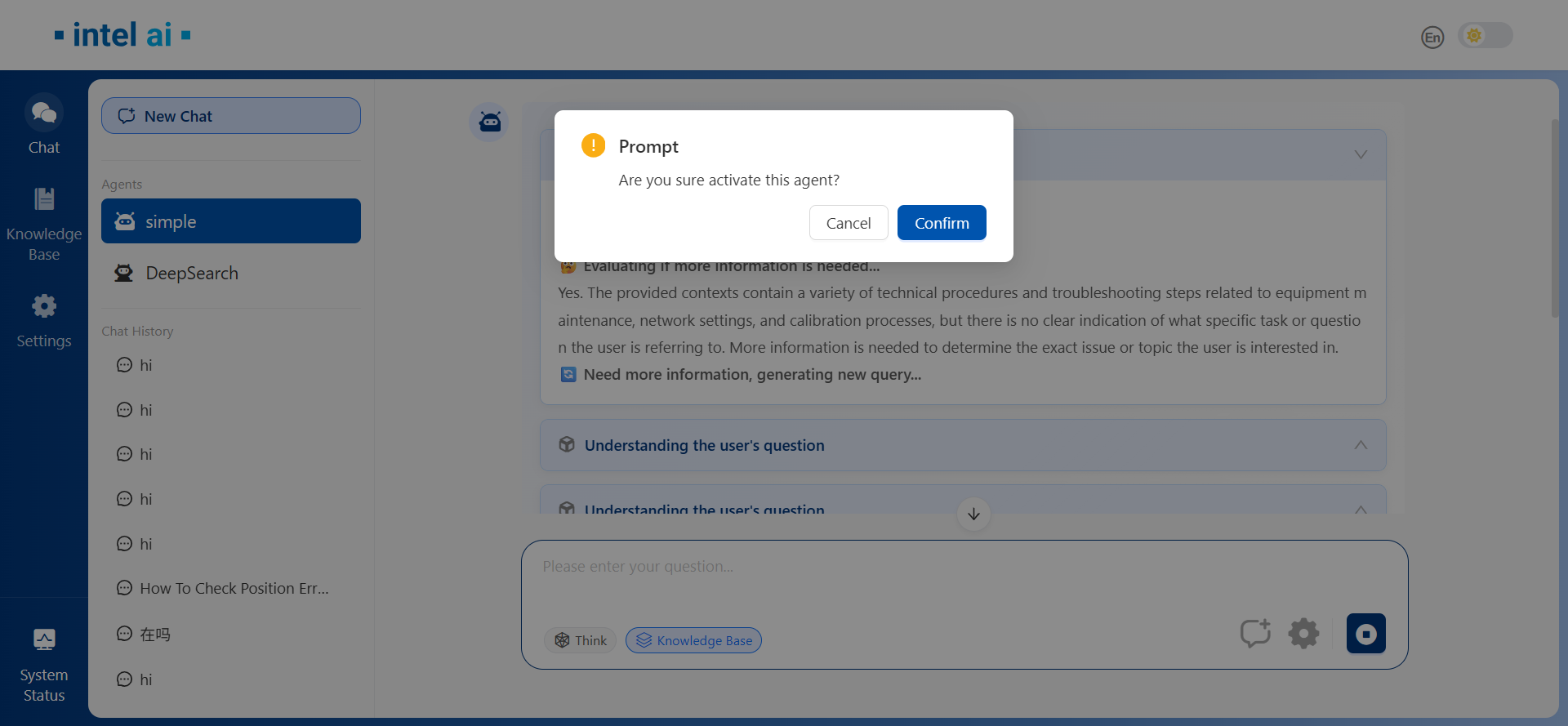
Agent could also be deactivated by single-click on the activated agent.
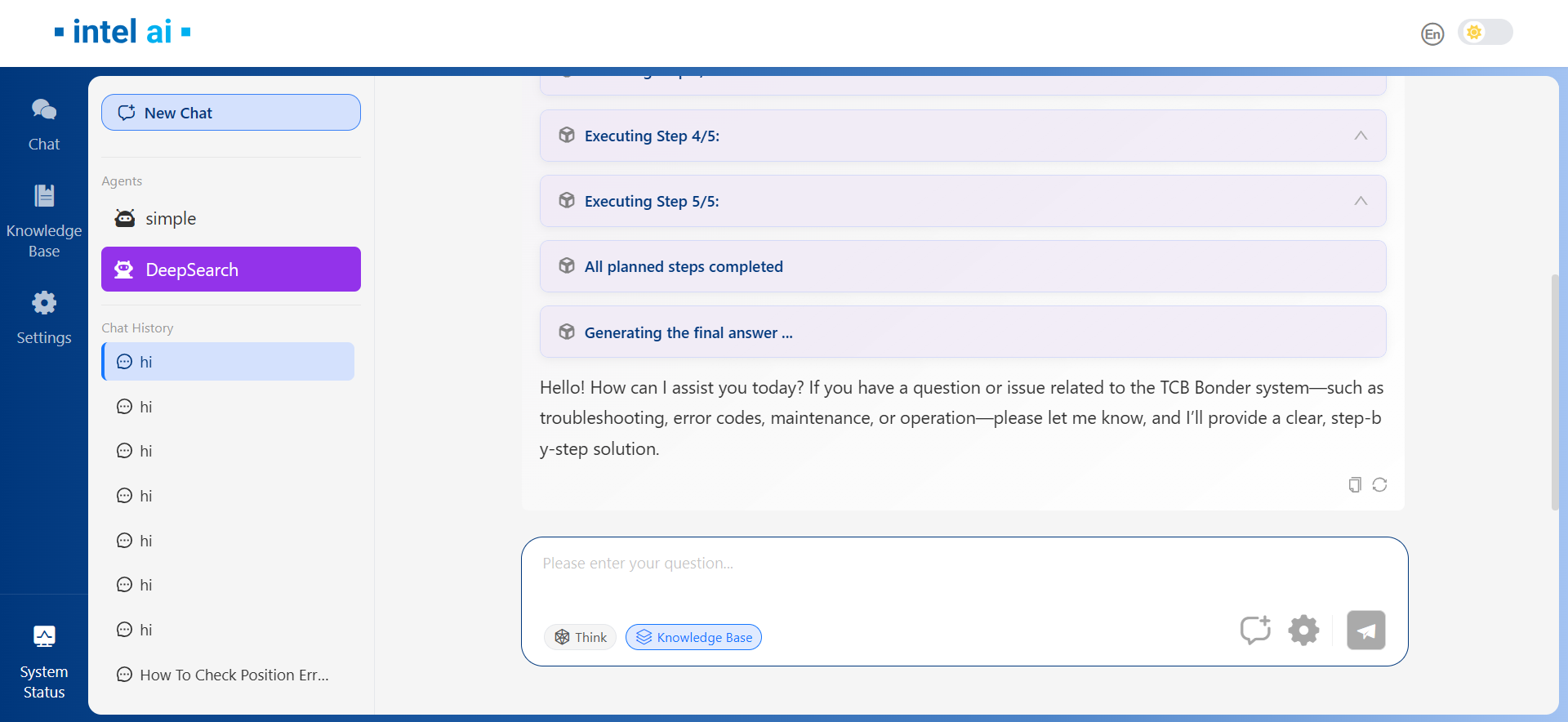
While DeepSearch agent is working, it will make plans on its own and execute the plan step by step.
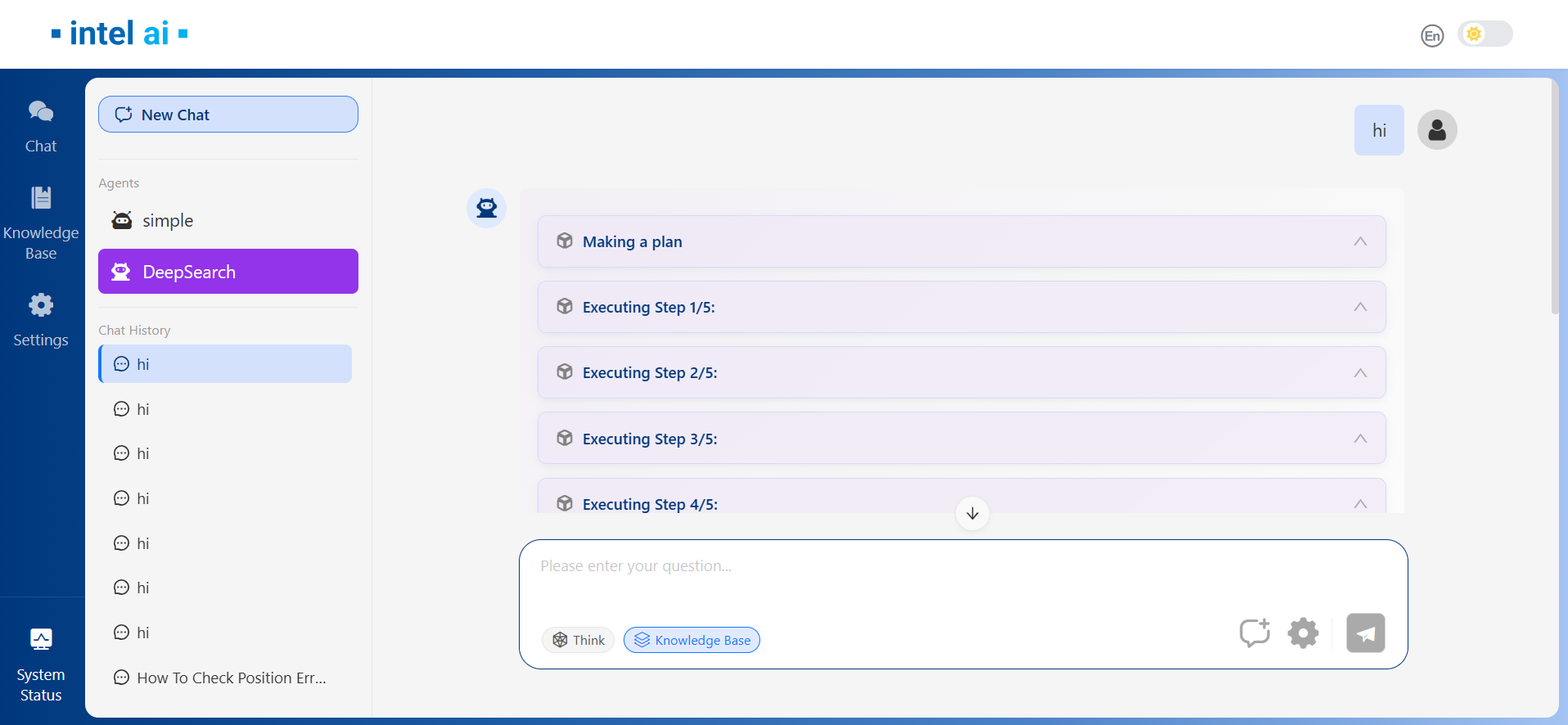
When all planned steps completed, DeepSearch agent will generate the final answer.